This is default featured slide 1 title

Go to Blogger edit html and find these sentences.Now replace these sentences with your own descriptions.This theme is Bloggerized by Lasantha Bandara - Premiumbloggertemplates.com.

This is default featured slide 2 title

Go to Blogger edit html and find these sentences.Now replace these sentences with your own descriptions.This theme is Bloggerized by Lasantha Bandara - Premiumbloggertemplates.com.

This is default featured slide 3 title

Go to Blogger edit html and find these sentences.Now replace these sentences with your own descriptions.This theme is Bloggerized by Lasantha Bandara - Premiumbloggertemplates.com.

This is default featured slide 4 title

Go to Blogger edit html and find these sentences.Now replace these sentences with your own descriptions.This theme is Bloggerized by Lasantha Bandara - Premiumbloggertemplates.com.

This is default featured slide 5 title

Go to Blogger edit html and find these sentences.Now replace these sentences with your own descriptions.This theme is Bloggerized by Lasantha Bandara - Premiumbloggertemplates.com.

Showing posts with label linux_recent_post. Show all posts

How to Create Bootable Ubuntu CD or USB Disk

Ubuntu Extraction MethodIt’s Very Easy than Windows in Ubuntu to Create a Bootable Ubuntu CD or USB Stick. Without Using Any Software You can Create Bootable Ubuntu CD. Just You Need a Ubuntu ISO File. You can Install it beside Windows or Try it without Install. As a Freeware Operating System We Need to Support it. Because it’s Give Us Full Access in Operating System. The Best Great Advantage in Ubuntu its Completely Virus Free, Which is the Most Anxious Matter for Windows.
How to Create Bootable Ubuntu CD -  
⇒ If You don’t have a Ubuntu ISO File, You can Download Latest Version (11.04) Ubuntu from Official Site. Download Link. 
⇒ Find Your Ubuntu ISO File. You Need to Extract it. If you have Winrar Software it will be best to extract it or you can Use Any Other Extraction Software. 
⇒ Extract Ubuntu ISO File in a Specific Folder and Give it’s Name “Bootable Ubuntu” (Name isn’t a Matter, You can Give Any Name).
⇒ Now Extract Ubuntu ISO File.
For Bootable UBUNTU USB Disk –
⇒ Input a USB Disk in Your System which have Minimum 2GB Capacity. 
⇒ Format it with Your Desired Name. Ensure it you have No Virus in Your USB Disk.
⇒ Go Inside “Bootable Ubuntu” (In My Case) or Which Name You Gave Folder. 
⇒ Select All Extraction File and Copy it Inside Ur USB Disk.
Ubuntu Extraction Method[Caution – don’t copy the Extraction Folder, copy all extraction file which have inside folder. If you copy folder inside USB disk or CD, you can’t boot UBUNTU] 
⇒ Now Your USB Disk is Ready to Install Ubuntu from Boot Menu. 
⇒ Restart Your PC and Select USB Mode from Boot Option. Now you can Install Ubuntu.
For Bootable UBUNTU CD – 
⇒ This is Not Differ from Above Method.
⇒ You Just Need to Burn All Extraction File (Without Folder, I Say Details in Above) Using Any Burning Software (Nero is Recommended). 
⇒ Now Restart Your PC and Give CD Mode from Boot Option.
[I Test it on UBUNTU 11.04 (Latest) Version]

How can I Change Ubuntu (Linux) Default Setting

Ubuntu ThumbanailsWhen You Install Ubuntu (Linux) in Your PC by Default You can't Access Many thing (Like Internet, Connect With Ur Printer, Connect to Wireless Network....). You Need to Change Ur Default Setting . Specially Internet  Connection is So Important. Without Internet Connection You can't Feel Ubuntu Properly. If You have a LAN Connection You have Nothing Need to do Anything.
Process of Change Ubuntu Default Setting: 
Ur User Name⇒ Open Ur Ubuntu System.
⇒ Click on Top “System” Menu. 
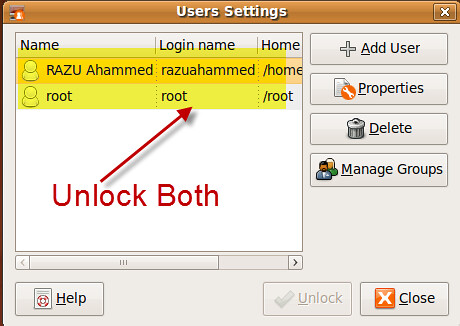
⇒ Now Go “Administration” to “Users and Groups”.
⇒ Unlock Ur User Name by Ur Password (link-Folder) 
⇒ Also do it for “ROOT” User.
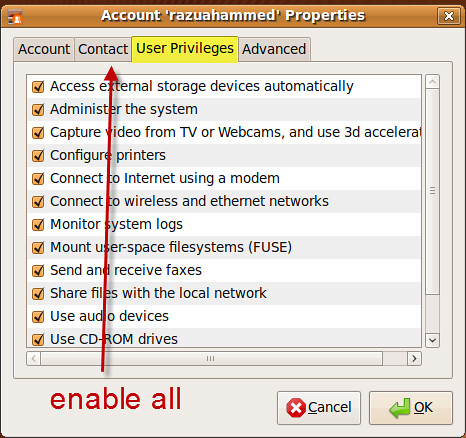
Select All⇒ Now Click “Properties” and Go “User Privileges” Tab
⇒ Select Everything and Press OK.
⇒ Restart Ur PC. Now You can Connect with Internet (LAN) Without Giving Any Setting. It's Active By Default and Also Active Others Feature.

Portable Team Viewer for Linux-(Ubuntu)

Linux (Ubuntu) is a Only Freeware Operating System. But in Linux Installation Process is So Complex than Windows Seven or Windows XP . Portable Software is a Good Solution for this Problem. Download Portable Team Viewer Software from Below Download Link. These Apps have been tested on Ubuntu 10.04 (Lucid Lynx) 32-bit, OpenSUSE 11.3 (GNOME) 32-bit , and Fedora 12 (GNOME) 32-bit.
Team Viewer Feature –
Team Viewer (Enlarge Image by Click)
Team Viewer is a Very Good Software for Connecting with Another PC. If You have Internet and Installed Team Viewer Software You can Connect Any of Your Partner PC Who have also Team Viewer. RUN Portable Team Viewer. Now You have got a ID and Password. It’s Your Connection Key. Give It to Your Partner for Connecting with You. When Your Partner Put Your ID and Password in his Team Viewer then Connection Setup with You. Now You can Control Your Partner Dextop and able to Send File.

VLC Portable for Linux (Ubuntu)

Download the Popular VLC Player Portable Version for Linux (Ubuntu). It’s Really Desired Software Specially Portable for this Freeware Operating System. VLC also Popular in Windows Seven or XP. VLC is a Sufficient Software. You have No Need to Install Any Other Codec. First Time VLC Support Single Frame, Bluray and HD Audio.Maximum format Video and
 Audio Support VLC Media Player. VLC also Support Live TV Record from a Decoder Card. All the Above this is a Open Source Software. You have No Need any Pay for a Original VLC Player. Portable VLC is Reliable for Linux Version. This Portable Version Tested on Ubuntu 10.04 (Lucid Lynx) 32-bit, OpenSUSE 11.3 (GNOME) 32-bit , and Fedora 12 (GNOME) 32-bit. So You can Tension Free About the Activity of this Portable Version.

Create a UBUNTU USB Startup Disk

It's Very Easy for UBUNTU to Create a USB Startup Disk. You're PC Work like Normal Operating System. But the Question is, how can I Create a UBUNTU Startup Disk?
Process Like Below:

** Inset a Ubuntu CD in Your DVD Rom


 ** Run it from "without any change to Your Computer" command.
** After Starting Your System Insert a Formatted USB Disk in Your System.
(U can Also Put Unformatted USB but formatted USB Disk is Recommended)
** Now Go SYSTEM >> ADMINISTRATION >> USB Startup Disk Creator


** Now Click MAKE STARTUP DISK button.
** Wait Until Finishing Your Copying.
** After finishing it Restart Your System & Run UBUNTU from Your USB Disk.


Download LINUX Portable Software

It’s Very Difficult Work to Install Linux Software in System. You Tired to Find About Linux Portable Software. If You can Reach this Position I can Give You Good News. After Finishing this Post You Must Be a Happy Man. Because I Give Here Some Very Important Linux Portable Software. It’s Very Hard to Find(U May be Not Found Anywhere) Some Linux Portable Software. Many Users Lost Their Interest from Linux Operating System for Only Reason Complex
Installation Method. If they will Found Linux Portable Software it will turn them in this Operating System. No More Discussion. Now Pick Up Your Portable Linux Software and Enjoy.

Portable Linux Software List (Which I Providing You) :

01. VLC 1.2.0
02. Team Viewer 6
03. Skype 1.0.81
04. SM Player 0.6.9
05. Firefox 4.0b9(Beta)

As Soon As Possible I will Provide More Portable Linux Software. Just Visit My Site Regularly. Give Comment If You Like this Post or Have Something Wrong. We Always Give Value About Your Comment.Download All of this Software from Below Link


Team Viewer (download link)


SM Player (download link)